Media
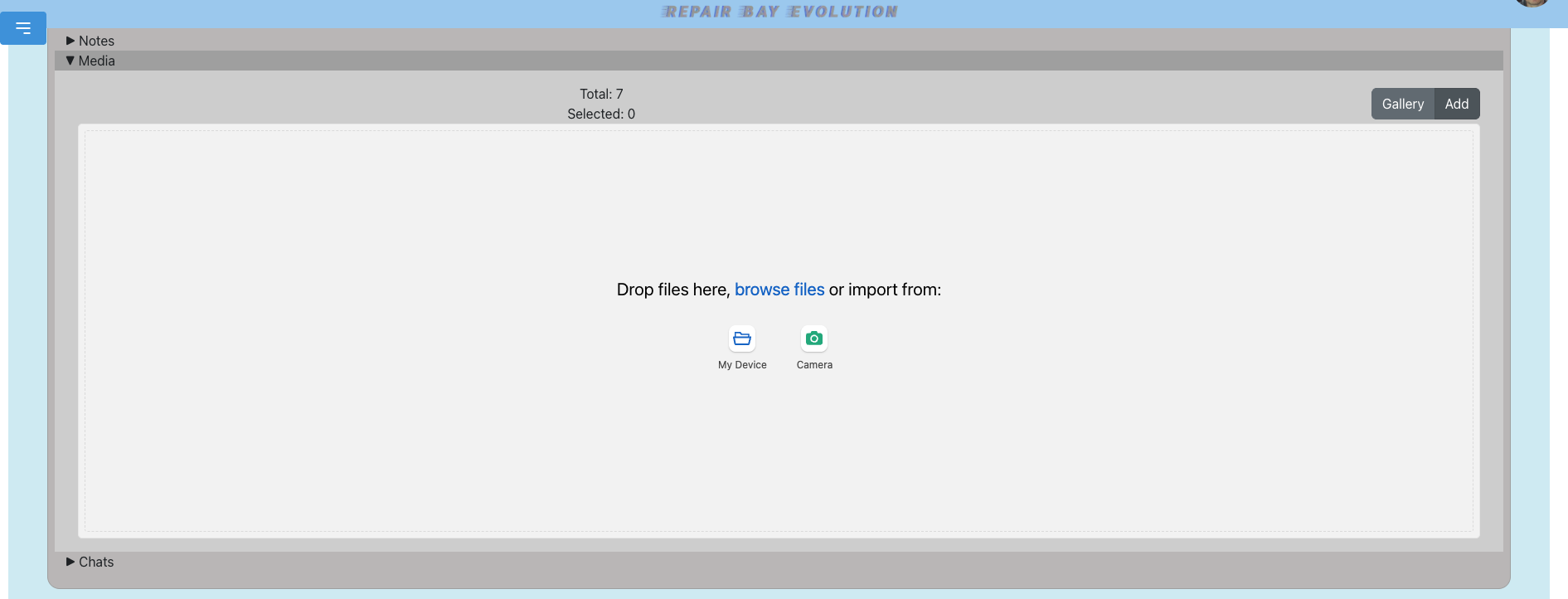
Upload Media
- Click on a job.
- Click on the Media tab.
- Click "Add Media".
- Either drag and drop a photo or browse on your device.
- Click upload and wait for finalization.
View the Gallery
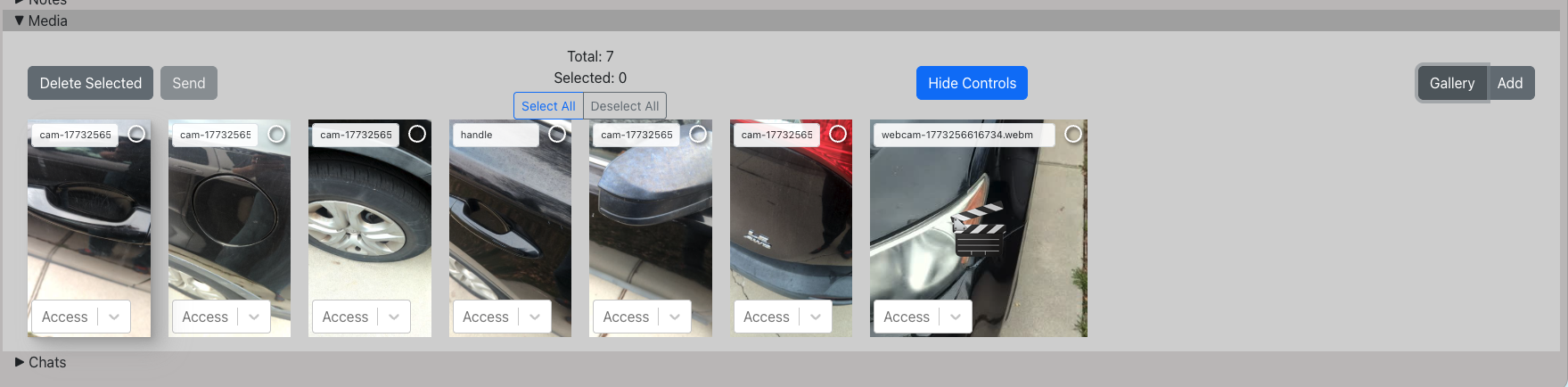
The gallery is available in all portals, but insurance users and customers can only see media they have been given explicit viewing privileges for.
- Click on a job.
- Click on the Media tab.
- Click "Gallery".
Give Customer/Insurance Access to Media
- Click on a job.
- Click on the Media tab.
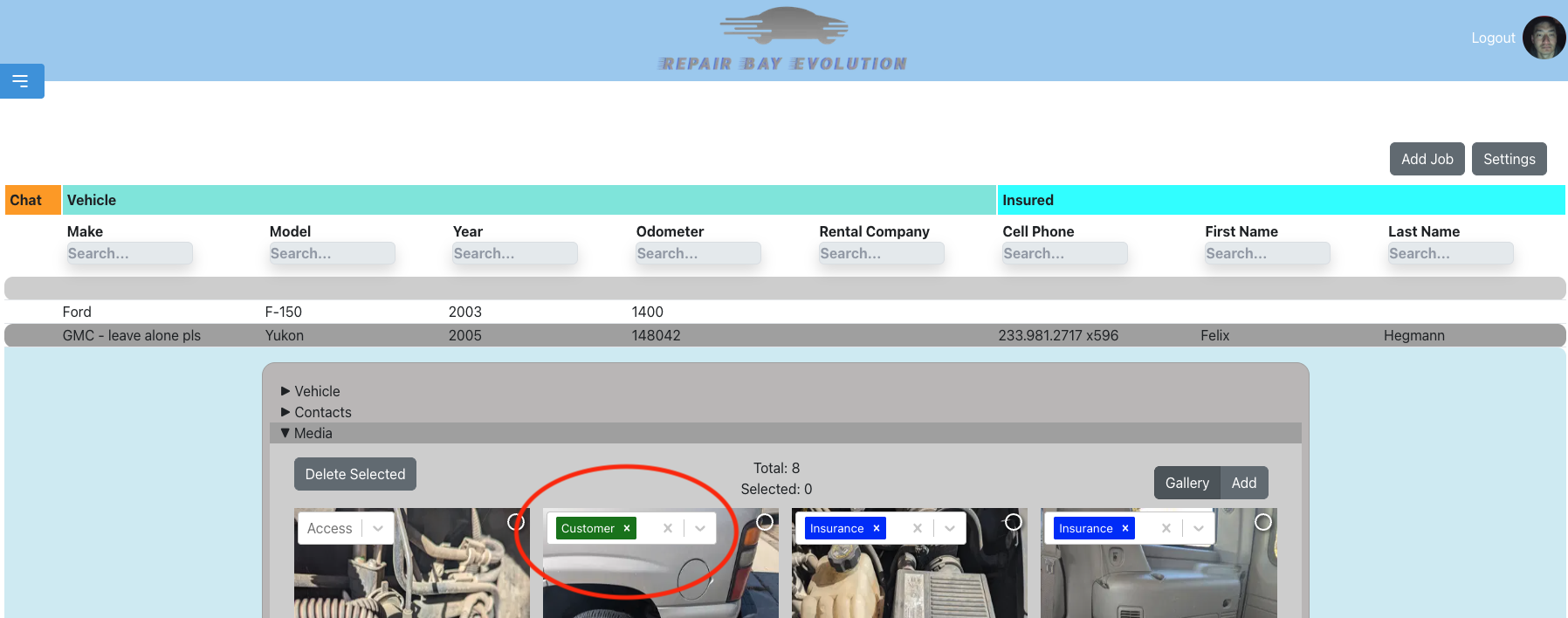
- Find the photo you want accessible outside the shop.
- Click on the dropdown to select one or more user types that will have access.
Send Media to Contacts
Send photos directly to contacts on a job via email or SMS with secure share links.
- Select one or more photos using the checkboxes.
- Click the "Send" button.
- Choose a contact from the parties on the job.
- Optionally add a message.
- Choose a delivery method (email or SMS).
For more details, see the Send Media to Contacts section in the Communication guide.