Communication
Create a Chatroom
Overview: Chatrooms are where users communicate with each other. A job can have as many chat rooms as needed.
- Click on the job you wish to add a chatroom to.
- Click on the Chats tab.
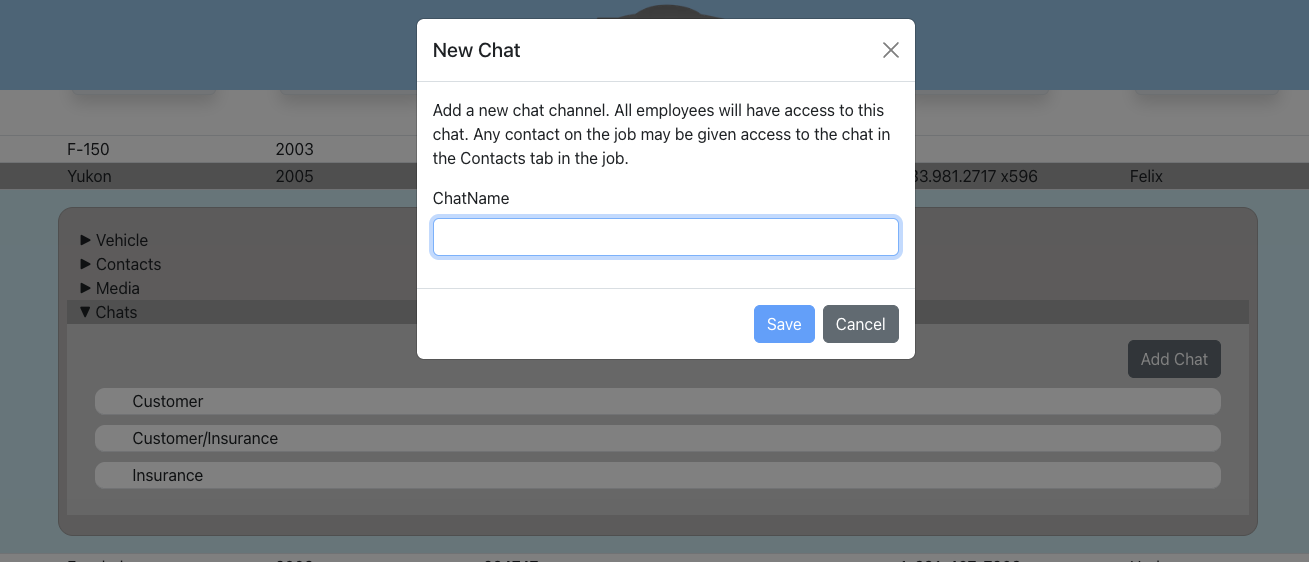
- Click "Add ChatRoom".
- Add a name for the chat. This name will be visible to all participants.
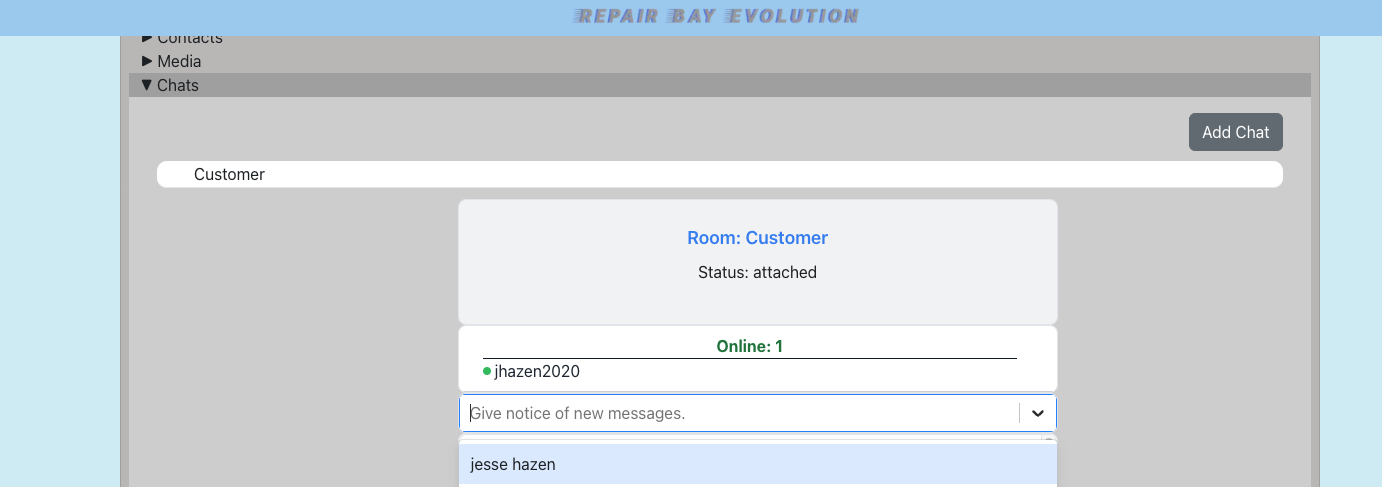
Get In-App Notifications for Unread Chats
- Click on the job.
- Go to the Chats section.
- Click on your chat.
- In the dropdown, click on employee names you wish to receive in-app notifications.
The Notification Bell
Overview: The bell in the top-right header is your in-app notification center. A red badge shows how many notifications you haven't read yet (it reads "99+" once you pass 99), and it updates in near real-time with a brief pop-up toast as new notifications arrive.
- Click the bell to open a dropdown of your 50 most-recent notifications. Unread ones are bold with a blue dot.
- Click a notification to mark it read; if it links to a job, you'll be taken there.
- Click Mark all read at the top of the dropdown to clear the badge.
To choose which events notify you and how they're delivered — including turning on browser push — see the Notification Preferences guide.
Text or Email a Contact
Overview: You can send SMS text messages and emails directly to a party on a job and see their replies in a two-way conversation thread. Messaging happens in the Contacts section, inline under each communication method — a phone number unlocks SMS, and an email address unlocks email. Each thread is gated by a one-time consent step.
Before You Start
The party must have a communication method on file for the channel you want to use. If they don't, add one first (Contacts → Add Other Communication). See the Create a Communication Method guide.
Send a Text Message (SMS)
- Open the job and go to the Contacts section.
- Find the party and expand their phone number communication.
- If this is the first message, you'll be prompted for consent. Confirm you have the contact's permission to text them, then click Confirm SMS Consent.
- Type your message in the "Type a message..." box and click Send (or press Enter).
- Replies appear in the same thread. Incoming messages update the SMS indicator on the job in the jobs list.
Note: You can revoke consent at any time using the Revoke link next to the consent status.
Send an Email
- Open the job and go to the Contacts section.
- Find the party and expand their email communication.
- If this is the first message, click Confirm Email Consent.
- Enter a Subject, type your message, and click Send. Both the subject and body are required.
- Replies appear in the same thread, and incoming email updates the Email indicator on the job in the jobs list.
To control which team members get notified when a contact replies, see SMS & Email Notification Subscribers below.
SMS & Email Notification Subscribers
Overview: Each job has a "Notify on Incoming SMS / Email" setting in the Contacts section. Team members added to this list will see unread SMS and Email indicators in the jobs list for that job.
Manually Subscribe to a Job
- Click on a job and go to the Contacts section.
- Find the "Notify on Incoming SMS / Email" multi-select.
- Select the team members who should be notified of new messages on this job.
Subscribed users will see the SMS and Email columns light up in the jobs list when new messages arrive on that job.
Auto-Subscribe to New Jobs
Instead of manually adding yourself to every job, you can enable automatic subscription:
- Go to the side menu → Users.
- Click on an employee to expand their profile.
- Check "Notify on incoming SMS / Email on new jobs".
- Save changes.
From now on, whenever a new job is created, that employee will automatically be added to the job's notification subscriber list. They will see unread SMS and Email indicators for all new jobs without needing to be manually selected each time.
Send Media to Contacts
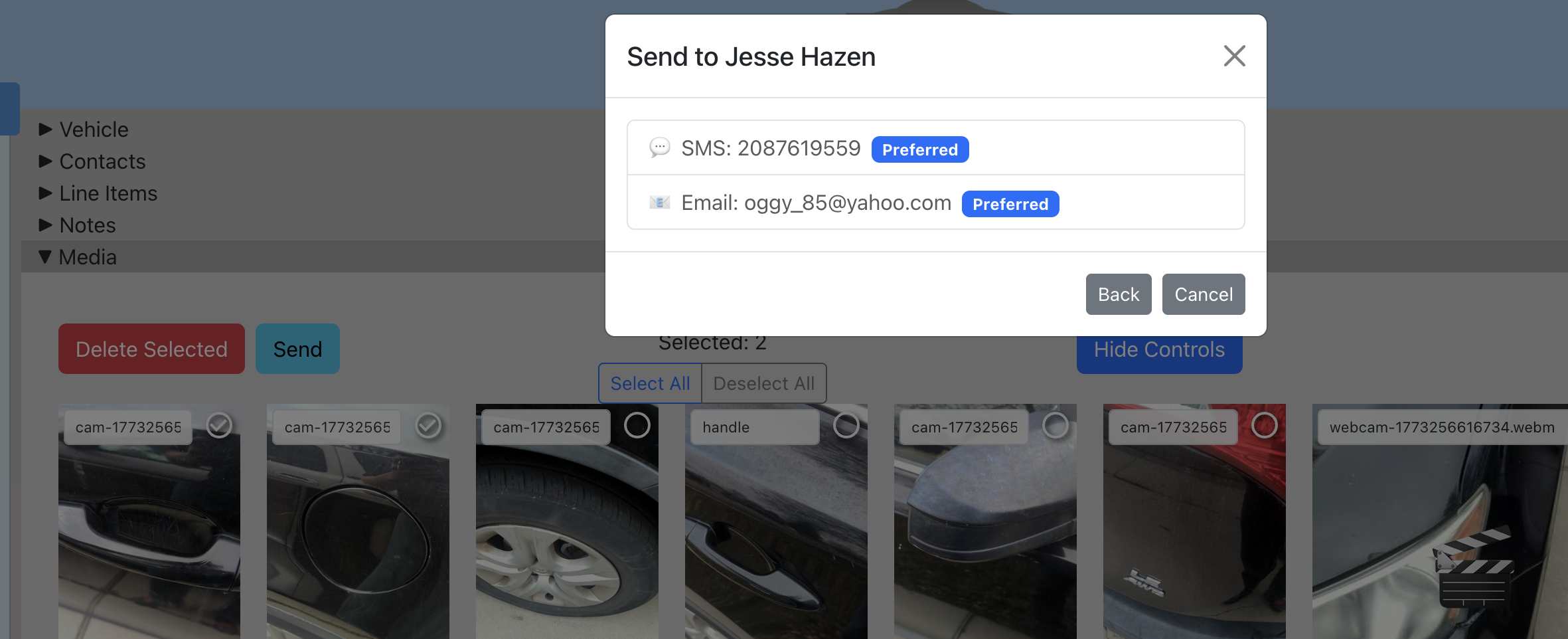
Overview: You can send photos directly to contacts on a job via email or SMS. The system generates secure share links for each file.
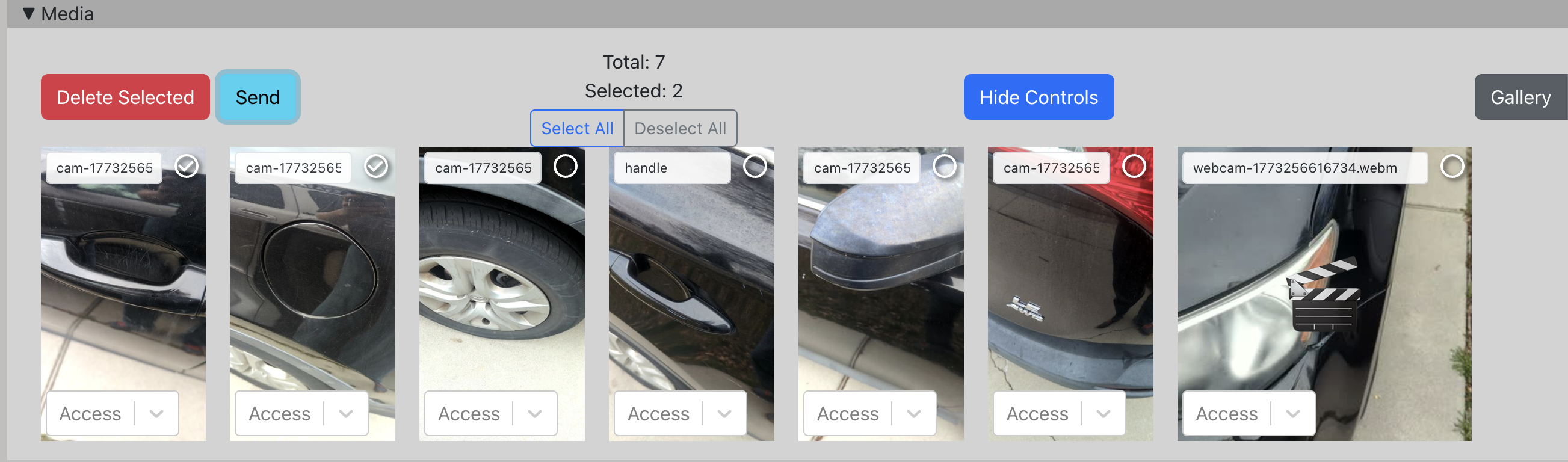
- Click on a job and go to the Media tab.
- Select one or more photos using the checkboxes.
- Click the "Send" button.
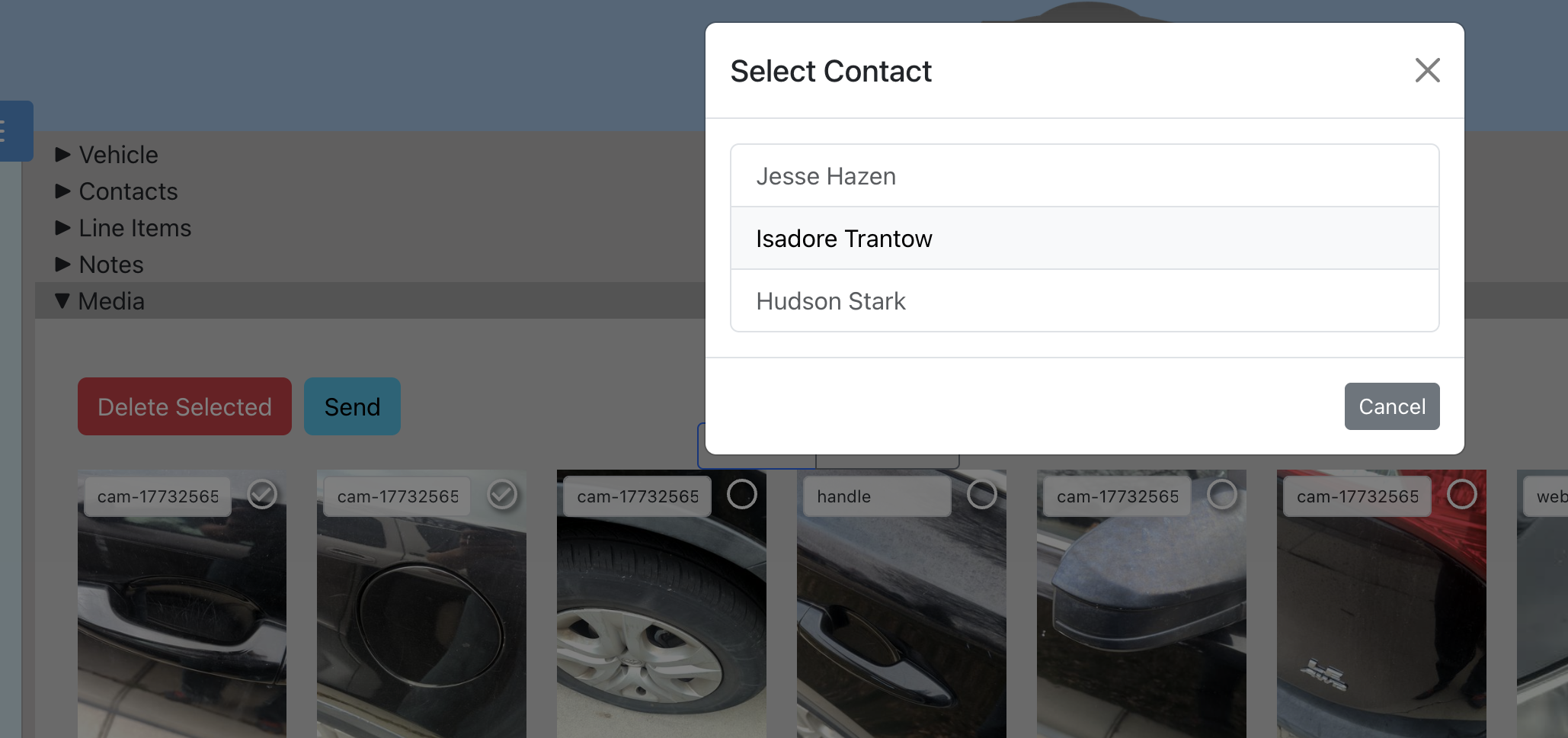
- Choose a contact from the list of parties on the job.
- Optionally add a message to include with the files.
- Click "Next" and choose a delivery method (email or SMS) from the contact's available communication methods.
Send Estimates & Invoices
Overview: Estimates and invoices are sent from their own screens rather than the Contacts section, so their steps are documented in their own guides.
- Estimates — Use Send to Customer on an estimate to email an approval link, or generate a link you can share by text, chat, or in person. See the Send an Estimate guide.
- Invoices — Use Send Invoice to deliver the invoice to the paying contact, or copy the payment link to share it another way. See the Send an Invoice guide.
Tip: To share an estimate or invoice link by text message, generate or copy the link and paste it into the contact's SMS thread.